

A detailed OpenClaw guide covering the open-source personal AI assistant, Gateway architecture, setup, channels, skills, videos, official media, safety, and real-world use cases.
Last checked: May 21, 2026. This article uses the official OpenClaw website, GitHub repository, documentation, and showcase pages as primary sources. The featured image is the official OpenClaw logo from the OpenClaw GitHub repository. Credit: OpenClaw project / Peter Steinberger and contributors.
Quick answer
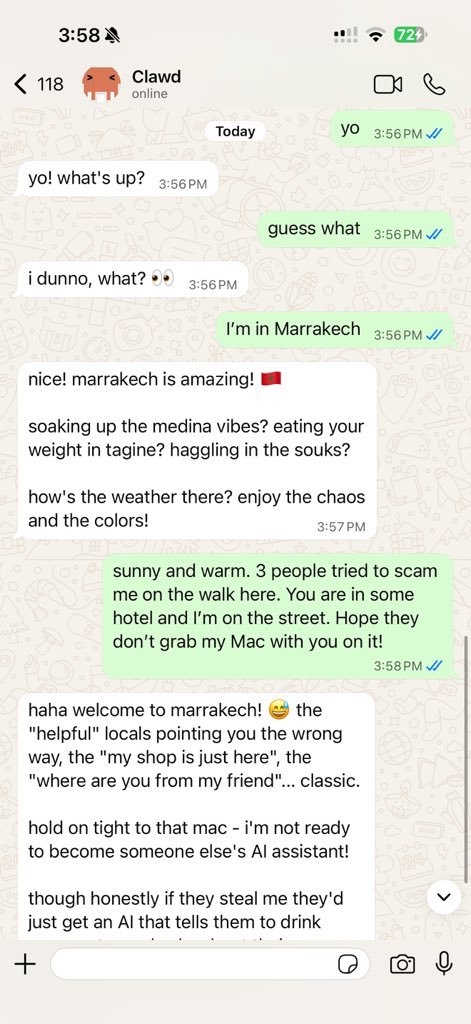
OpenClaw is an open-source personal AI assistant that runs on your own devices and connects to the chat apps and tools you already use. Instead of being only a chatbot in a browser tab, OpenClaw is designed as a local-first agent system: you can message it from platforms such as WhatsApp, Telegram, Slack, Discord, Signal, iMessage, Microsoft Teams, Matrix, Google Chat, and other supported channels, then ask it to act through tools, skills, browser automation, files, sessions, reminders, voice features, and connected nodes.
The central idea is simple: the large language model provides reasoning, while OpenClaw provides the operating layer around it. That operating layer includes a long-running Gateway, authenticated clients, channel connectors, agent workspaces, skills, sandbox settings, local state, device pairing, WebSocket APIs, and optional companion apps. The official project describes it as a personal assistant you run on your own devices, and the official website positions it as an AI that can clear inboxes, send emails, manage calendars, check travel tasks, and work from existing chat apps.
That makes OpenClaw interesting for developers, power users, technical founders, productivity-heavy professionals, and anyone experimenting with AI agents that can do real work. It also makes OpenClaw risky if configured casually. A tool-enabled AI assistant that can read files, control a browser, run commands, send messages, or connect to real accounts needs more care than a normal chatbot. The right question is not only "What can OpenClaw do?" It is also "Who can message it, where can it act, what can it touch, and how quickly can I audit or revoke access?"
This guide explains OpenClaw in detail: what it is, why people are talking about it, how the architecture works, how to set it up, what channels and skills mean, how the official media and videos present it, and what security posture you should use before connecting personal or business accounts.

What is OpenClaw?
OpenClaw is a free and open-source personal AI assistant project built around a local Gateway and an agent runtime. You install it on a machine you control, connect it to one or more model providers, then interact with it through a dashboard, CLI, mobile or desktop nodes, and chat platforms. The assistant can respond in conversation, but its main appeal is action: it can use tools, operate through channels, remember context, call skills, manage sessions, automate workflows, and work in the background.
The official GitHub repository describes OpenClaw as a personal AI assistant that runs on your own devices and answers through the channels you already use. The same README lists a wide range of supported channels, including WhatsApp, Telegram, Slack, Discord, Google Chat, Signal, iMessage, IRC, Microsoft Teams, Matrix, Feishu, LINE, Mattermost, Nextcloud Talk, Nostr, Synology Chat, Tlon, Twitch, Zalo, WeChat, QQ, and WebChat.
In plain English, OpenClaw is an attempt to move AI from "I type into a chat box and copy the answer" to "I give an instruction through the interface I already use, and an agent performs the steps on my machine or approved services." A normal chatbot may draft an email. OpenClaw can be configured to operate closer to the place where email, files, calendars, terminals, browsers, and messaging tools actually live.
The project has grown quickly in public visibility. On May 21, 2026, the GitHub page showed roughly 374,000 stars and 77,600 forks. Numbers like that can change daily, but they show why OpenClaw has become part of the broader conversation around local-first AI agents, personal automation, and open-source assistant infrastructure.
It is important to separate this OpenClaw from older uses of the name. There is also an OpenClaw project connected to a reimplementation of the 1997 Captain Claw platform game. This article is about OpenClaw the personal AI assistant at openclaw.ai and github.com/openclaw/openclaw.
Why OpenClaw matters in 2026
The AI assistant market is crowded. Every major platform is adding chat, summarization, writing help, and automated task suggestions. OpenClaw stands out because it is not trying to be a closed SaaS assistant controlled entirely by one vendor. It is open source, self-hostable, model-provider friendly, and designed to sit close to your own machine, accounts, tools, and data.
That matters for three reasons.
First, interface fatigue is real. People already live in WhatsApp, Telegram, Slack, Discord, Teams, email, browser tabs, calendars, terminals, code editors, and project tools. A useful assistant should not always require another destination app. OpenClaw leans into chat-native control, so the assistant can be reached from the same messaging surfaces where requests already arrive.
Second, personal automation needs context. A generic AI tool can produce a good answer, but many useful tasks require local context: files, logs, calendar state, browser sessions, project folders, recurring preferences, tool credentials, and previous conversations. OpenClaw's design gives the assistant a persistent environment and workspace model so it can behave less like a disposable Q&A session and more like a long-running operator.
Third, ownership matters. If you run an assistant that can act on your behalf, you should care where data lives, who controls the keys, how logs are stored, and what the agent can reach. OpenClaw is not automatically private just because it is self-hosted, because model API calls, plugins, channels, and misconfiguration can still expose data. But self-hosting gives technically capable users more control over the boundary than a fully managed assistant does.
The tradeoff is responsibility. OpenClaw is powerful precisely because it connects to real systems. That means the user must think about pairing, allowlists, sandboxing, secrets, file permissions, browser control, and incident response. If you want a zero-maintenance consumer assistant, OpenClaw may feel too technical. If you want a hackable personal AI operating layer, it is one of the most serious open-source projects to study.
How OpenClaw works
OpenClaw is built around the Gateway. The Gateway is the long-lived process that owns messaging surfaces and coordinates clients, nodes, sessions, tools, and events. According to the official architecture docs, a single Gateway owns messaging surfaces such as WhatsApp, Telegram, Slack, Discord, Signal, iMessage, and WebChat. Control-plane clients such as the macOS app, CLI, web UI, and automations connect to the Gateway over WebSocket, with the default local bind shown as 127.0.0.1:18789.
That Gateway pattern is the core mental model. Instead of each integration acting independently, the Gateway becomes the control plane. It maintains provider connections, exposes a typed WebSocket API, validates inbound frames, emits events, and handles the communication routes used by clients and nodes.
The agent layer is where reasoning and task execution come together. You configure a model provider, start a session, send a message, and the assistant can respond using available context and tools. Depending on configuration, that tool access can include browser automation, file operations, command execution, sessions, cron jobs, nodes, Canvas, and channel actions. This is why OpenClaw feels different from a chatbot: the conversation is only the instruction surface.
Nodes extend the system beyond the Gateway host. The docs describe macOS, iOS, Android, and headless nodes that connect over WebSocket with an explicit node role, device identity, capabilities, and commands. A node can provide device-specific abilities such as camera access, canvas commands, screen recording, location, or voice interactions, depending on platform and permission settings.
The web dashboard and Control UI provide a browser-based management surface. The setup docs tell users to run openclaw dashboard after verifying the Gateway, and the dashboard should open the Control UI in the browser. This is useful for users who want a visible management experience before connecting the assistant to phone or team chat channels.
The architecture also includes pairing and local trust. New device IDs require pairing approval, and remote connections still need explicit approval. This matters because OpenClaw is designed to act, not only talk. A rogue client or untrusted sender should not be treated as a normal user.
Main OpenClaw features
OpenClaw's feature set is broad, but it is easier to understand if you group it into six practical categories.
The first category is chat-native access. You can interact with the assistant from supported channels such as WhatsApp, Telegram, Slack, Discord, Signal, iMessage, Microsoft Teams, Matrix, and WebChat. For many users, this is the feature that makes OpenClaw feel natural. You can ask for help from your phone or team chat instead of logging into a separate app.
The second category is local-first operation. OpenClaw is meant to run on your device, home server, VPS, or controlled host. It can be installed through the official installer or package routes, then run as a Gateway daemon. A local-first architecture does not eliminate cloud dependencies, because most users still call an external model provider, but it changes where the assistant's operating environment lives.
The third category is tool use. OpenClaw can be configured with tools for browsing, file access, code execution, sessions, cron jobs, message sending, Canvas, and other actions. Tool access is the difference between "summarize what I should do" and "perform this approved workflow."
The fourth category is skills. The official skills docs say OpenClaw uses AgentSkills-compatible folders to teach the agent how to use tools. A skill is a directory with a SKILL.md file containing frontmatter and instructions. Skills can be bundled, local, personal, project-specific, workspace-specific, or loaded from extra folders. This gives users a way to package repeatable behavior and domain knowledge.
The fifth category is multi-agent and workspace routing. OpenClaw supports isolated agents, sessions, and workspaces. That matters for users who want one assistant for personal admin, another for development tasks, another for support, and another for research. Instead of stuffing every instruction into one giant prompt, you can split duties by workspace and access level.
The sixth category is voice, nodes, and live surfaces. The official README mentions speaking and listening on macOS, iOS, and Android, plus a live Canvas. These features point toward a broader assistant experience where chat, voice, visual workspace, and device capabilities are part of one system.
OpenClaw setup overview
The official getting started guide says the goal is to install OpenClaw, run onboarding, and chat with your AI assistant in about five minutes. It lists Node.js as a requirement, with Node 24 recommended and Node 22.14+ also supported. It also says users need an API key from a model provider such as Anthropic, OpenAI, or Google, with onboarding prompting for the key.
The quick setup flow has five main steps.
- Install OpenClaw on macOS, Linux, or Windows. The official docs show an install script for macOS and Linux, and a PowerShell install route for Windows.
- Run onboarding with
openclaw onboard --install-daemon. The wizard helps choose a model provider, set an API key, and configure the Gateway. - Verify the Gateway with
openclaw gateway status. The docs say the Gateway should be listening on port18789. - Open the dashboard with
openclaw dashboard. If the Control UI loads, the core setup is working. - Send the first message in the Control UI or connect a phone-friendly channel such as Telegram.
That is the beginner-friendly path. Developers can also work from source. The README says source checkouts use pnpm, and the development flow includes cloning the repository, running pnpm install, setting up local config and workspace, and running Gateway watch commands. For most users, the packaged install and onboarding route is the safer first step.
Before connecting serious accounts, run through a setup checklist:
- Use a dedicated machine, OS user, VPS, or account boundary if the assistant will touch sensitive workflows.
- Start with one channel, usually Telegram or the dashboard, before adding multiple messaging platforms.
- Configure the model provider deliberately and watch usage costs.
- Keep API keys and channel tokens out of random project folders.
- Run
openclaw security auditafter configuration changes. - Avoid public inbound messages unless you have a clear allowlist and sandbox plan.
The setup is not only about getting a reply. The setup is about building a trusted operating boundary.
Official OpenClaw videos
The official OpenClaw showcase page links to videos for people who want to see real setup and workflow examples before installing. These videos are useful because OpenClaw can sound abstract until you see a channel-connected assistant receive instructions and operate through tools.
If you are evaluating OpenClaw for your own workflow, watch the setup video first, then read the security docs before connecting email, calendar, Slack, WhatsApp, browser sessions, or shell access. A demo can show the upside quickly, but the security docs explain the cost of giving an agent real authority.
Real-world use cases
The most convincing OpenClaw use cases are not generic "AI will save time" claims. They are specific workflows where the assistant has enough context and permission to complete a task that normally crosses several apps.
For personal productivity, OpenClaw can become a chat-accessible assistant for reminders, calendar checks, summaries, recurring tasks, inbox triage, file retrieval, notes, and daily briefings. The practical advantage is convenience: you can send a message from your phone and have the assistant work against a machine or service where the relevant context already exists.
For developers, OpenClaw can coordinate coding sessions, inspect repositories, run tests, summarize logs, monitor tasks, and report status through chat. A developer could ask the assistant to investigate a failing build, collect logs, summarize a pull request, or trigger a local toolchain. This is useful only when sandboxing and repository boundaries are clear, because file and shell access can become dangerous quickly.
For small teams, OpenClaw can support internal automation such as Slack auto-support, bug triage, incident updates, documentation lookups, and scheduled checks. However, teams must be more careful than individuals. The official security docs are explicit that OpenClaw's guidance assumes a personal assistant deployment with one trusted operator boundary per Gateway. If multiple untrusted or adversarial users can talk to one tool-enabled agent, they may effectively share delegated authority for that agent.
For home automation and hardware, the showcase includes examples around air purifiers, Home Assistant, cameras, 3D printers, and robot vacuums. These workflows are appealing because natural language becomes a control layer over devices and scripts. They also raise safety questions. A home automation assistant should not be able to unlock, purchase, delete, or expose without clear guardrails.
For knowledge workflows, OpenClaw can help build memory systems, transcribe voice notes, index chat exports, search bookmarks, and connect notes across sessions. This is where local-first architecture becomes valuable: the assistant can work near personal archives and project folders. Still, any workflow that touches private messages, voice notes, or health data deserves strict privacy review.
For creators and operators, OpenClaw can connect research, writing, posting, scheduling, asset generation, and analytics. A content workflow might start in Telegram, pull source material, draft a brief, generate a checklist, create a task, and report completion. That is powerful, but published content still needs human fact-checking and editorial judgment.
OpenClaw skills explained
Skills are one of OpenClaw's most important concepts. A skill gives the assistant instructions for a repeatable capability. Instead of explaining the same workflow every time, you package the workflow as a folder with a SKILL.md file. The official docs say OpenClaw loads bundled skills plus optional local overrides, and filters them based on environment, config, and binary presence.
The precedence model is useful for serious users. Workspace skills can override project agent skills, which can override personal agent skills, managed local skills, bundled skills, and extra directories. In practice, this means a project can define its own instructions without permanently changing every assistant on the machine.
Skills also support access control patterns. The docs describe agent skill allowlists, where a default skill set can be shared and specific agents can override it. This helps avoid a common agent mistake: giving every agent every tool and every instruction. A research agent may not need file write access. A calendar assistant may not need shell access. A coding agent may not need messaging permissions.
Good OpenClaw skills should be narrow. They should explain when to use a workflow, what inputs are required, what files or APIs are involved, how to verify results, and what actions require explicit confirmation. Poor skills are vague, overpowered, or silently destructive.
When installing community skills, inspect the source before running them. A skill can shape how an assistant uses tools, and tools may touch sensitive systems. Treat community skills the way you would treat shell scripts, browser extensions, or CI actions from unknown authors.
Security and privacy
OpenClaw security deserves its own section because the project is meant to act. The official security docs state that OpenClaw security guidance assumes a personal assistant deployment: one trusted operator boundary, potentially many agents. It is not presented as a hostile multi-tenant boundary for multiple adversarial users sharing one agent or Gateway.
That warning is not a small footnote. It is the foundation of safe use. If you connect OpenClaw to real messaging surfaces and real tools, every inbound message must be treated as untrusted until you prove otherwise. A random sender, compromised chat account, malicious group participant, prompt injection in a webpage, or unsafe plugin instruction can all become part of the assistant's operating context.
The official docs recommend running security audit commands such as openclaw security audit, openclaw security audit --deep, and openclaw security audit --fix. The docs also explain the security goal in practical terms: be deliberate about who can talk to the bot, where the bot is allowed to act, and what the bot can touch.
Start with these guardrails:
- Use DM pairing and allowlists instead of open public access.
- Keep the Gateway bound locally unless you have a secure remote access plan.
- Prefer Tailscale, VPN, or SSH tunnels for remote access instead of exposing raw services.
- Use separate gateways, hosts, OS users, or credentials for mixed-trust situations.
- Limit filesystem, shell, browser, cron, and channel permissions by agent role.
- Redact and rotate secrets if logs or transcripts may have exposed them.
- Disable risky channels until you understand how inbound messages are isolated.
- Review browser automation carefully, because browsers can reach internal services and authenticated sessions.
OpenClaw's power comes from delegation. Delegation without boundaries is not productivity; it is an access-control problem. The safest path is to start with the smallest access that still works, then widen permissions only after you have observed the assistant's behavior.
OpenClaw vs normal AI chatbots
OpenClaw is often compared with ChatGPT, Claude, Gemini, Copilot, and other assistants, but it sits in a different layer. A chatbot is usually a hosted interface plus a model. OpenClaw is a local assistant framework that connects models, channels, tools, workspaces, clients, and automations.
A normal chatbot is easier to start. You create an account, open the app, type a request, and get a response. OpenClaw asks more from the user: installation, Node.js, model provider credentials, Gateway setup, channel pairing, security review, and ongoing updates. For non-technical users, this can be a barrier.
OpenClaw becomes more compelling when the task requires action across systems. If you only need a paragraph rewritten, a standard AI chat app is simpler. If you want an assistant reachable from Telegram that can inspect a project folder, run an approved command, summarize the result, and send you a status message, OpenClaw is closer to the required architecture.
The best comparison is not "which model is smarter?" OpenClaw can work with different model providers. The better comparison is "which operating environment gives the model the right tools, context, permissions, and feedback loop?"
Who should use OpenClaw?
OpenClaw is best for technically comfortable users who want an AI assistant that can run close to their own systems. Developers, startup operators, automation enthusiasts, AI researchers, power users, and home lab users are the clearest audience. These users are more likely to understand the setup, inspect configuration, review permissions, and debug issues.
OpenClaw can also be useful for small business owners or creators, but only if someone technical owns the deployment and safety model. Giving an assistant access to email, calendars, customer messages, files, websites, and browser sessions without a responsible operator is a bad idea.
OpenClaw is not the best first AI tool for everyone. If you want a simple writing assistant, use a standard chatbot. If you want a managed business automation platform with vendor support, audit logs, compliance agreements, and admin controls, evaluate enterprise tools. If you want to explore local-first, open-source, action-oriented personal AI, OpenClaw is worth studying.
SEO summary
OpenClaw is an open-source AI assistant and personal AI agent platform for users who want local-first automation, chat-native control, model flexibility, skills, channels, and real tool use. Its main strengths are ownership, extensibility, messaging integrations, agent workspaces, and a Gateway architecture that can coordinate real tasks. Its main risks are misconfiguration, overbroad permissions, prompt injection, unsafe community skills, exposed browser control, and unclear trust boundaries.
For search intent, the short answer is: OpenClaw is a self-hosted AI assistant that runs on your own machine, connects to chat apps like WhatsApp, Telegram, Slack, and Discord, and lets an AI agent use approved tools and skills to perform tasks. It is powerful, but it should be configured with strong pairing, allowlists, sandboxing, audits, and careful secret handling.
FAQ
Is OpenClaw free?
OpenClaw is open-source software under the MIT license according to the official GitHub repository. Running it may still cost money because most users connect it to paid model APIs, hosting, phone numbers, messaging services, or third-party tools.
Is OpenClaw private?
It can be more private than a fully hosted assistant because you run the Gateway and local environment yourself. But privacy depends on configuration. Model API calls, connected channels, logs, plugins, browser sessions, and unsafe permissions can still expose data.
Does OpenClaw work with ChatGPT or OpenAI models?
The official README mentions model provider support and OpenAI as one of the model/auth options. You still need valid credentials and should monitor model usage and cost.
Can OpenClaw run on Windows?
The official getting started docs say Windows is supported, with WSL2 recommended for the full experience. The docs also include a PowerShell install route.
Is OpenClaw safe for teams?
It can be used in team-like workflows, but the official security docs emphasize a personal assistant trust model. For mixed-trust teams, use separate gateways, credentials, OS users, or hosts, and avoid letting untrusted users share one tool-enabled agent authority.
What is the first thing to do after installing OpenClaw?
Run onboarding, verify the Gateway, open the dashboard, send a test message, then read the security guide before connecting sensitive accounts or public channels.
Sources
- Official OpenClaw website: openclaw.ai
- Official GitHub repository and logo source: github.com/openclaw/openclaw
- Official getting started docs: docs.openclaw.ai/start/getting-started
- Official Gateway architecture docs: docs.openclaw.ai/concepts/architecture
- Official security guide: docs.openclaw.ai/gateway/security
- Official skills docs: docs.openclaw.ai/tools/skills
- Official showcase and video links: docs.openclaw.ai/start/showcase
Before you move on
Global AI workflow guidance. Use this short checklist to turn the article into action.
- Check whether the tool can access private files or account data.
- Verify factual claims against primary sources before publishing.
- Keep a human review step for work that affects money, school, or customers.
This guide is written for practical user safety. For account, platform, or legal decisions, confirm critical steps with the official help center or your service provider.