
A practical guide to Bitdefender ransomware protection, including Ransomware Remediation, GravityZone Ransomware Mitigation, setup steps, limits, backups and recovery.
Last checked: May 28, 2026. This article is based on Bitdefender consumer and GravityZone documentation, AV-TEST results, CISA ransomware guidance and the FBI IC3 2025 report. It is an independent editorial guide, not a sponsored review.
Quick answer
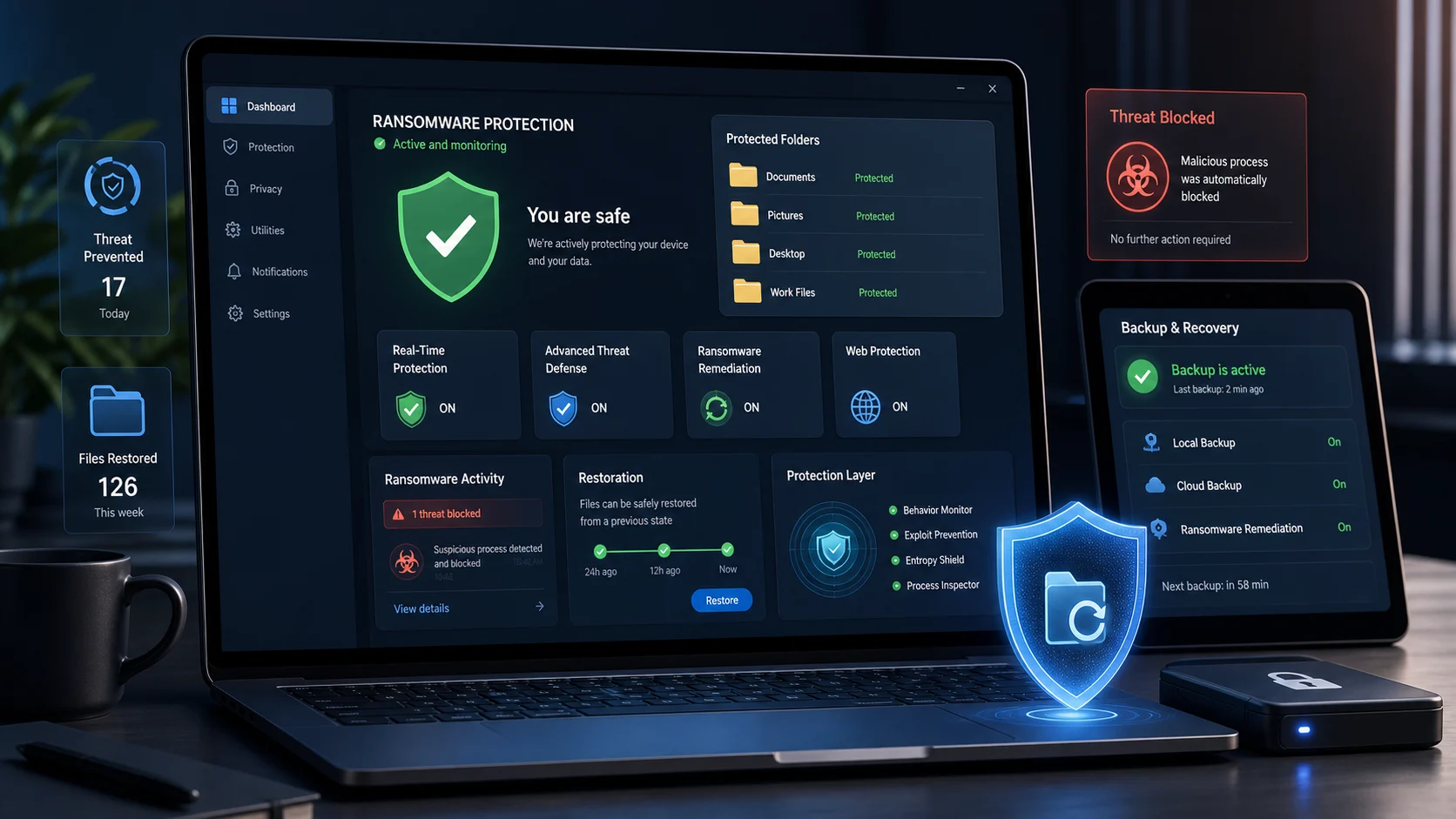
Bitdefender ransomware protection is not one single switch. For home users, the most important feature is Ransomware Remediation, which Bitdefender says can block ransomware attacks and automatically restore the content of encrypted files when the protection is able to capture and recover the changes. For business users, Bitdefender GravityZone includes Ransomware Mitigation, a managed endpoint feature that monitors abnormal file-encryption behavior, blocks the process and restores affected files from temporary backup copies.
The strongest takeaway is practical: keep Bitdefender protection enabled, keep Ransomware Remediation or GravityZone Ransomware Mitigation turned on where supported, and still maintain separate backups. Security software can stop or limit many attacks, but it cannot guarantee recovery from every ransomware scenario, especially if attackers steal data, abuse valid credentials, disable defenses, encrypt network shares or compromise cloud accounts.
For everyday users, Bitdefender is a useful layer. For businesses, it should be part of a wider ransomware program: patching, MFA, least privilege, EDR alerts, email security, backup testing, incident response and offline or immutable backup copies.
Why this matters now
Ransomware remains a high-impact threat because it can combine file encryption, data theft, extortion, downtime and recovery costs. The FBI's 2025 IC3 report says IC3 received more than 3,600 ransomware complaints in 2025, with losses exceeding $32 million. The FBI also notes that ransomware loss totals often do not include lost business, time, wages, files, equipment or third-party remediation services, so the real impact can be much larger than the reported figure.
Bitdefender's consumer protection also has current independent test context. AV-TEST evaluated Bitdefender Total Security 27.0 for Windows 11 in January and February 2026 and gave it 6.0 out of 6.0 in protection, performance and usability. That is a strong anti-malware result, but it is not a promise that every ransomware attack will be stopped or every file will be restored.
What Bitdefender ransomware protection includes
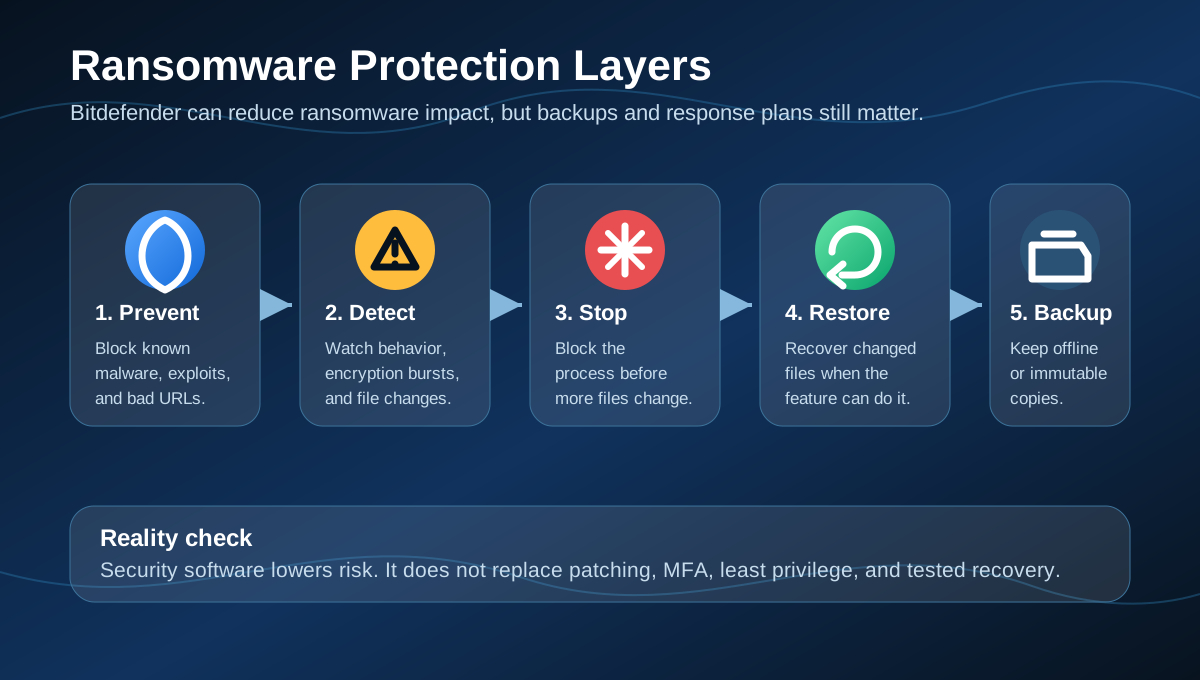
Bitdefender uses several layers that matter against ransomware:
| Layer | What it does |
|---|---|
| Real-time malware protection | Detects and blocks known malicious files and behavior. |
| Network threat prevention | Helps stop malicious network activity, exploit attempts and dangerous URLs. |
| Advanced Threat Defense | Watches active apps for suspicious behavior and can stop suspicious activity. |
| Multi-layer ransomware protection | Adds file-protection and remediation logic around documents, pictures, videos, music and other user data. |
| Ransomware Remediation | Consumer feature that backs up protected files during suspicious encryption activity and restores affected files where possible. |
| GravityZone Ransomware Mitigation | Business feature that detects abnormal encryption attempts, blocks the process and restores files from backup copies. |
Bitdefender Total Security is marketed as a multi-platform product for Windows, macOS, Android and iOS, but ransomware remediation behavior and controls vary by product, plan and operating system. The most visible Ransomware Remediation workflow is in the Windows consumer interface under the Protection screen.
How consumer Ransomware Remediation works
Bitdefender's support documentation says Ransomware Remediation backs up files such as documents, pictures, videos and music to protect them from damage or loss if ransomware encryption occurs. When Bitdefender detects a ransomware attack, it blocks the processes involved and starts remediation while notifying the user.
If Automatic restore is enabled, Bitdefender can automatically restore files encrypted by ransomware. Users can also review restored files from Notifications in the Bitdefender interface. If automatic restoration fails or only partially succeeds, Bitdefender's documented manual workflow lets users open the ransomware notification, view encrypted files and run a recovery process to a chosen restore location.
That design matters because ransomware often modifies user files quickly. Instead of only quarantining the malicious process after damage is done, remediation tries to preserve recoverable copies of affected files around the attack window.
How to check that it is enabled
For supported Bitdefender consumer products, use this basic check:
- Open Bitdefender.
- Go to Protection.
- Find Ransomware Remediation.
- Keep the module enabled.
- Select Manage to check whether Automatic restore is enabled.
- Review Notifications after any ransomware alert.
- Add exclusions only for trusted apps that Bitdefender incorrectly blocks.
Do not turn off Ransomware Remediation to reduce pop-ups unless you understand the tradeoff. If a legitimate app is repeatedly blocked because it behaves like ransomware, investigate the app and use a narrow exclusion only when you trust it.
What GravityZone Ransomware Mitigation does for businesses
Bitdefender GravityZone Ransomware Mitigation is a business endpoint feature. Bitdefender says it monitors file entropy during write attempts. When a request appears to encrypt a file and the randomness of the file rises beyond a threshold, GravityZone creates a temporary backup in memory and restores the original file after the suspicious changes are done.
Bitdefender's documentation says this approach does not rely on Windows Volume Shadow Copy, which attackers commonly try to delete. GravityZone detects abnormal encryption attempts, blocks the process and recovers files from backup copies to their original location.
The feature has requirements. Bitdefender says Ransomware Mitigation requires Advanced Threat Control and Antimalware, with the endpoint security agent set to Detection and prevention mode. Admins must enable and configure the feature in GravityZone policy, usually under the Antimalware and On-Execute settings.
For workstations, local monitoring is generally the natural fit. For servers and shared storage, admins should review Bitdefender's guidance carefully because aggressive ransomware monitoring on production servers can have operational implications.
What Bitdefender cannot promise
Ransomware protection is a control, not an insurance policy. Even a strong endpoint product can miss or fail to fully contain an attack if:
- The attacker uses stolen administrator credentials.
- Security tools are disabled before encryption starts.
- Files are stored only in cloud sync folders and the bad changes sync everywhere.
- The ransomware encrypts data on a network share from another compromised device.
- The attack steals data before encryption.
- Backups are online and reachable from the infected account.
- The device is already compromised before protection is installed.
- A legitimate remote management tool is abused by an attacker.
This is why CISA's ransomware guidance emphasizes prevention, backups, response planning and recovery. Bitdefender can be a major defensive layer, but the recovery plan should not depend on one endpoint feature.
Best setup for home users
For a personal Windows PC, the best Bitdefender ransomware setup looks like this:
- Keep Bitdefender updated.
- Keep real-time protection enabled.
- Keep Ransomware Remediation enabled.
- Keep Automatic restore enabled.
- Turn on web and phishing protection.
- Use a standard user account for everyday work where possible.
- Keep Windows, browsers and Office apps patched.
- Use a password manager and MFA for important accounts.
- Keep at least one backup that is not always connected to the PC.
- Test restoring a few files before you need it.
The backup point is critical. A removable drive that is always plugged in can be encrypted with the computer. A cloud sync folder can sync damaged files. For important files, keep a separate backup path that ransomware cannot easily reach.
Best setup for businesses
For businesses using GravityZone, ransomware protection should be configured and tested, not assumed.
Start with endpoint policy. Make sure Antimalware and Advanced Threat Control are deployed in Detection and prevention mode where Ransomware Mitigation is required. Enable Ransomware Mitigation in policy and confirm the right monitoring mode for workstations, servers and shared folders.
Then connect the feature to operations:
- Send GravityZone alerts to the team that actually responds.
- Test ransomware-like detections in a controlled lab, not on production data.
- Confirm isolation and response actions are available for high-risk endpoints.
- Review exclusions; broad exclusions can create ransomware blind spots.
- Protect admin accounts with MFA and least privilege.
- Patch internet-facing systems and remote access tools.
- Keep EDR or XDR telemetry long enough for investigation.
- Maintain offline, immutable or access-controlled backups.
- Run a tabletop exercise for ransomware recovery.
Endpoint recovery can save files, but business recovery also requires clean credentials, clean systems, known-good backups, legal and communications processes, and a decision path for data-theft extortion.
What to do if Bitdefender reports ransomware
Do not ignore the alert just because files appear to be restored.
For home users:
- Disconnect from the network if encryption appears active.
- Do not reboot repeatedly unless Bitdefender or support tells you to.
- Open Bitdefender Notifications and review the ransomware event.
- Check whether files were automatically restored.
- If needed, use the manual recover-files workflow from the ransomware notification.
- Change passwords from a clean device if credentials may have been exposed.
- Restore missing files from a known-good backup only after the device is clean.
For businesses:
- Isolate the endpoint from the network.
- Preserve logs and the Bitdefender event.
- Identify the initial access path: phishing, exposed RDP, VPN, stolen credentials, drive-by download or software vulnerability.
- Check for lateral movement and data exfiltration.
- Review whether shadow copy deletion, backup access or credential dumping occurred.
- Recover from trusted backups only after containment.
- Report significant cyber-enabled incidents through the appropriate legal, regulatory and law-enforcement channels.
The FBI asks victims of cybercrime to report incidents to IC3. For ransomware, a report can help investigators connect infrastructure, wallets, variants and victims.
Backups still decide recovery
The most important misunderstanding about ransomware protection is the belief that file restoration inside a security product replaces backup. It does not.
Use a layered backup model:
- One working copy on your device.
- One local backup that is not constantly writable.
- One cloud or offsite backup.
- At least one offline or immutable copy for critical data.
- Regular restore tests.
Businesses should separate backup admin credentials from domain admin credentials. They should also monitor for backup deletion, mass file rewrites, suspicious encryption activity and unusual cloud storage access.
Should you rely on Bitdefender alone?
No. Bitdefender can be a strong part of a ransomware defense plan, and its consumer and business features are designed specifically to reduce the impact of encryption. But ransomware is no longer only encryption. Many attacks now include stolen credentials, data theft, extortion, vendor compromise and abuse of legitimate tools.
For most users, the right answer is:
- Use Bitdefender or another reputable endpoint protection product.
- Keep ransomware-specific protection enabled.
- Keep separate backups.
- Avoid suspicious links and attachments.
- Patch quickly.
- Use MFA.
- Practice recovery before a crisis.
Media: ransomware awareness
The following CISA videos are useful for ransomware and prevention training:
FAQ
Is Bitdefender Ransomware Remediation the same as backup?
No. It can restore files affected by ransomware in supported scenarios, but it is not a replacement for independent backups.
Does Bitdefender decrypt ransomware?
Ransomware Remediation is not the same as cracking encryption. It attempts to restore affected files from protected copies created around the attack. For some ransomware families, Bitdefender and other vendors may also publish separate decryptors, but that is different from the live remediation feature.
Is GravityZone Ransomware Mitigation for home users?
No. GravityZone is Bitdefender's business security platform. Home users usually see consumer features such as Ransomware Remediation inside products like Bitdefender Total Security, depending on plan and operating system.
Should I turn off Automatic restore?
Most users should leave it on. Turning it off means Bitdefender may still detect and alert, but recovery may require manual steps.
Does Bitdefender protect cloud files?
It can protect files on the local device, including local sync folders, but cloud recovery depends on the cloud service, sync history, file versioning and account security. Protect cloud accounts with MFA and review file-version recovery options.
What if Bitdefender blocks a legitimate app?
Investigate first. If the app is trusted and the behavior is expected, create a narrow exclusion instead of disabling ransomware protection broadly.
Sources
- Bitdefender Support: What is Bitdefender Ransomware Remediation and what can it do?
- Bitdefender: Bitdefender Total Security
- Bitdefender GravityZone documentation: Ransomware Mitigation
- AV-TEST: Bitdefender Total Security 27.0 for Windows 11, January-February 2026
- CISA: #StopRansomware Guide
- CISA: StopRansomware.gov
- FBI: 2025 IC3 Annual Report
- FBI IC3: File a Complaint
- CISA YouTube: Defend Against Ransomware Attacks
Before you move on
Defensive security explainers. Use this short checklist to turn the article into action.
- Change reused passwords on important accounts.
- Enable multi-factor authentication or passkeys where available.
- Keep a separate backup for files you cannot afford to lose.
This guide is written for practical user safety. For account, platform, or legal decisions, confirm critical steps with the official help center or your service provider.