
A detailed SEO guide to cybersecurity tips for everyday users, families, students, creators, and small teams, covering passwords, MFA, phishing, updates, backups, scams, privacy, Wi-Fi, mobile security, AI risks, official media, videos, and checklists.
Last checked: May 21, 2026. This cybersecurity tips guide is based on practical guidance from official and primary sources including CISA Secure Our World, NIST, the FTC, IdentityTheft.gov, the FBI Internet Crime Complaint Center, and major platform security guidance where useful. Feature image credit: official Secure Our World hero image from CISA.gov. Credit: Cybersecurity and Infrastructure Security Agency, U.S. Department of Homeland Security.
Cybersecurity tips are no longer advice for only IT departments, hackers, or large companies. They are basic digital life skills. Your email account controls your password resets. Your phone receives banking alerts and one-time codes. Your browser stores sessions for work, school, shopping, social media, cloud storage, and family photos. A weak password, a fake delivery message, an outdated laptop, or a rushed payment request can turn into stolen money, locked accounts, identity theft, leaked private files, or business downtime.
The good news is that strong cybersecurity does not require paranoia. It requires a short list of repeatable habits. Use unique passwords. Turn on multifactor authentication. Keep software updated. Slow down before clicking urgent links. Back up important files. Secure your email first. Teach your family or team how scams actually sound. These steps are not glamorous, but they block many of the attacks that affect real people every day.
This detailed guide explains the most important cybersecurity tips for individuals, parents, students, creators, remote workers, freelancers, and small businesses. It is written for practical use: what to do, why it matters, how to apply it, what mistakes to avoid, and where to report problems. It also includes official media, videos, checklists, FAQ answers, and source links so you can verify the guidance yourself.
Quick Answer: The Best Cybersecurity Tips
The most important cybersecurity tips are simple enough to start today. Use a password manager so every account has a different password. Turn on multifactor authentication, especially for email, banking, social media, cloud storage, and work accounts. Keep your phone, computer, browser, apps, and router updated. Treat urgent messages, payment requests, login links, QR codes, and unexpected attachments as suspicious until you verify them. Back up your most important files so ransomware, device loss, or account lockouts do not destroy everything.
If you only have one hour to improve your online security, do these five things first:
- Change your email password to a long, unique password stored in a password manager.
- Turn on multifactor authentication for your email and financial accounts.
- Enable automatic updates on your phone, computer, browser, and apps.
- Back up important documents, photos, and recovery files.
- Tell your family or team never to share one-time codes, passwords, or recovery links.
These steps cover the most common failure points. A criminal who cannot easily log in, reset your password, trick you into approving a login, or destroy your only copy of files has a much harder time hurting you.
Official Media and Videos
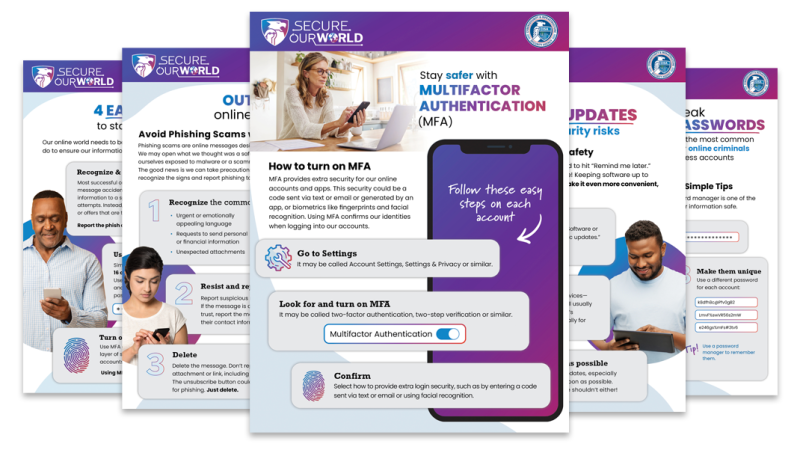
The image below is an official CISA Secure Our World media asset. It is included here because CISA's public campaign focuses on the same core behaviors that matter most for everyday cybersecurity: strong passwords, multifactor authentication, software updates, and phishing awareness.
Why Cybersecurity Tips Matter in 2026
Cybersecurity matters because ordinary accounts now carry extraordinary power. Your email inbox can unlock other accounts. Your cloud drive may hold tax records, contracts, IDs, school documents, and business files. Your phone may contain authenticator apps, payment wallets, private messages, and location history. Social media accounts can be used to scam friends, impersonate a brand, or damage a reputation. Work accounts can expose customer data, source code, financial documents, and internal conversations.
Attackers also do not need elite technical skills to cause serious damage. Many attacks begin with social engineering: a convincing email, a fake login page, a call pretending to be support, a message that looks like it came from a boss, or a warning that your account will be closed. Criminals buy leaked password lists, automate login attempts, copy brand designs, and use AI tools to write cleaner scam messages. The result is that a normal person can face polished fraud without realizing it.
Cybersecurity is therefore a combination of technology and behavior. Tools help, but habits matter. A password manager reduces password reuse. Multifactor authentication blocks many stolen-password attacks. Updates close known software vulnerabilities. Backups reduce the impact of ransomware. Verification habits stop payment scams. Reporting helps platforms, banks, and law enforcement act faster.
The goal is not to make yourself impossible to attack. No one can promise that. The realistic goal is to remove easy wins, limit damage, and recover quickly.
1. Use a Password Manager
A password manager is one of the highest-impact cybersecurity tools for everyday users. It stores your login details in an encrypted vault and helps you create long, random, unique passwords for each account. This solves the biggest password problem: reuse.
Password reuse is dangerous because one breach can spread everywhere. If you use the same password for a shopping site and your email, an attacker who gets the shopping password can try it against your email, bank, cloud storage, and social media. This is called credential stuffing, and it works because people reuse passwords across dozens of accounts.
With a password manager, you only need to remember one strong master password. The manager generates the rest. It can also help you spot fake login pages because it usually will not autofill credentials on the wrong domain.
Choose a reputable password manager, turn on multifactor authentication for the vault, save your recovery method somewhere safe, and start by updating your most important accounts first: email, bank, phone carrier, cloud storage, social media, work, and government accounts.
2. Use Long, Unique Passwords
Strong passwords should be long, unique, and hard to guess. A short password with special characters can still be weaker than a long passphrase. For accounts you must type manually, use a memorable passphrase made of unrelated words. For accounts stored in a password manager, use a long random password.
Avoid passwords based on names, birthdays, sports teams, cities, pets, phone numbers, company names, or common substitutions such as replacing "a" with "@." Attackers know those patterns. Also avoid passwords that look strong but are reused across many accounts. A reused password is fragile even if it has symbols and numbers.
Your email password deserves special attention. If someone controls your email, they can often reset passwords elsewhere. Make the email password unique, long, and protected by multifactor authentication.
3. Turn On Multifactor Authentication
Multifactor authentication, often called MFA or 2FA, adds a second proof during login. Instead of only requiring a password, the account also asks for something like an authenticator app code, security key, passkey, device approval, or backup code.
MFA matters because passwords leak. They can be stolen from breaches, guessed, phished, reused, or captured by malware. MFA gives you another layer. Even if an attacker knows your password, they still need the second factor.
Use MFA on every important account. Start with email, banking, password manager, cloud storage, social media, work accounts, phone carrier, tax accounts, domain registrar, website admin panels, and developer platforms. Prefer authenticator apps, passkeys, or hardware security keys where available. SMS-based codes are better than no MFA, but they can be weaker because phone numbers can be targeted through SIM swap fraud or carrier account compromise.
Save backup codes in a secure place. Many people turn on MFA and then lose access after replacing a phone. A good setup includes recovery planning.
4. Start Using Passkeys Where Available
Passkeys are a newer login method designed to reduce password and phishing risk. Instead of typing a reusable secret into a website, your device uses cryptographic keys. The private key stays on your device or in a secure synced vault, while the service keeps the public part.
Passkeys can be easier and safer because they are tied to the legitimate site or app. This makes them more resistant to fake login pages than traditional passwords. You may unlock a passkey with Face ID, Touch ID, Windows Hello, Android screen lock, a hardware security key, or another device approval method.
Use passkeys first on accounts that support them well, especially Google, Apple, Microsoft, GitHub, financial apps, and password managers. Keep recovery options current because passkeys also need account recovery planning. If a service offers both passkeys and passwords, keep the password strong and unique until the service allows a fully passwordless setup.
5. Keep Software Updated
Software updates are cybersecurity work. Updates fix bugs, close security holes, improve browser protections, and patch vulnerabilities that attackers may already be using. Delaying updates leaves your device exposed to known problems.
Turn on automatic updates for your operating system, browser, mobile apps, password manager, antivirus or endpoint protection, router firmware, and important productivity apps. Restart devices when updates require it. A pending update does not protect you until it is installed.
Browsers deserve special attention because they handle email, banking, cloud apps, documents, and downloads. Keep Chrome, Safari, Edge, Firefox, or whichever browser you use updated. Also remove extensions you do not need, because extensions can read or modify web pages depending on permissions.
6. Learn to Recognize Phishing
Phishing is an attempt to trick you into giving away information, clicking a malicious link, opening a dangerous attachment, approving a login, or sending money. It can arrive by email, text message, direct message, phone call, social media, QR code, calendar invite, search ad, or fake support chat.
Common phishing signs include urgent deadlines, threats, payment problems, password reset requests, unexpected attachments, strange sender addresses, login links, spelling mistakes, too-good-to-be-true offers, and messages that ask for secrecy. However, modern phishing can be polished. Do not rely only on grammar mistakes.
The better habit is verification. If a message claims to be from your bank, open the bank app or type the official address yourself. If a boss asks for gift cards, call them using a known number. If a delivery text asks for a small fee, go to the official carrier site. If an account warning includes a login link, open the app directly.
7. Verify Urgent Requests Through Another Channel
Urgency is one of the most effective scam tools. Attackers create pressure so you act before thinking. They may say your account will be closed, your package will be returned, your payment failed, your computer is infected, your boss needs a wire transfer, or a family member is in trouble.
Slow down. Use a second channel. Call the person. Open the official app. Visit the known website. Ask a teammate in the company chat. Check the invoice history. If the sender discourages verification, treat that as a warning sign.
This rule is especially important for payments, password resets, one-time codes, bank transfers, payroll changes, vendor bank details, gift card requests, cryptocurrency transfers, and remote access requests.
8. Never Share One-Time Codes
One-time codes are login keys. If someone asks for a code sent by text, email, authenticator app, or login prompt, assume they are trying to enter your account. Real support teams should not need your password or one-time code.
Scammers often pretend to help you recover an account. They trigger a login or reset code and ask you to read it back. Once you do, they complete the login and lock you out. This tactic is common on social media, messaging apps, marketplaces, and payment apps.
Teach this rule clearly: never share verification codes, MFA prompts, backup codes, password reset links, or recovery links with anyone. If you receive an unexpected code, change the account password and review recent activity.
9. Secure Your Email First
Your email account is the master key for your digital life. It receives password reset links, receipts, account alerts, cloud sharing notices, bank messages, and business communication. If an attacker gets into your email, they can search for accounts, reset passwords, hide warning emails, and impersonate you.
Secure email before less important accounts. Use a unique password, strong MFA, updated recovery options, and recent activity review. Remove unknown forwarding rules, filters, connected apps, and suspicious sessions. Check whether any recovery email or phone number was changed.
For work email, follow company policy and report suspicious messages. For personal email, consider keeping one address for high-value accounts and another for newsletters or public signups. Reducing clutter makes real security alerts easier to notice.
10. Review Account Recovery Options
Account recovery is part of cybersecurity. A strong account can still become a problem if your recovery phone number is old, your backup email is inactive, or your recovery codes are missing. Attackers also target recovery paths because they can bypass the normal login.
Review recovery settings for your major accounts. Confirm phone numbers, backup emails, trusted devices, backup codes, security keys, and recovery contacts. Remove devices you no longer own. Save emergency codes offline or inside a secure password manager entry.
Do this before you lose a phone or change numbers. Recovery is easiest when you are not already locked out.
11. Back Up Important Files
Backups protect you from ransomware, device theft, hardware failure, accidental deletion, account lockouts, and corrupted files. A backup is not just another synced folder. Sync can copy deletion or encryption across devices. A real backup gives you a way to restore earlier versions.
Use the 3-2-1 idea as a practical model: keep three copies of important data, on two types of storage, with one copy offline or separate from your main device. For many users, this means the original files, a cloud backup with version history, and an external drive that is not always plugged in.
Back up documents, photos, tax files, contracts, school records, creative projects, password manager recovery materials, business records, and website files. Test restoring a file occasionally. A backup you have never tested is only a hope.
12. Lock Every Device
Every phone, laptop, tablet, and desktop should lock automatically and require a password, PIN, fingerprint, face unlock, or hardware key. Device locks protect saved sessions, email, photos, documents, payment apps, and authenticator apps.
Use a strong device passcode. A four-digit PIN is better than nothing, but longer is better. Set devices to lock after a short idle time. Enable lost-device features such as Find My, Find My Device, or comparable enterprise tools. Know how to remotely locate, lock, or erase a lost phone.
Do not leave unlocked devices unattended in cafes, classrooms, airports, offices, rideshares, or shared homes. Physical access can become account access.
13. Use Device Encryption
Device encryption helps protect data if your laptop, phone, or external drive is lost or stolen. Modern iPhones, Android phones, Macs, Windows PCs, and many Linux setups support encryption. On Windows, this may involve BitLocker or device encryption. On Mac, FileVault protects the startup disk.
Encryption works best when combined with a strong device password and proper recovery key storage. If you enable encryption and lose the recovery key, you may lose access to the data. Save recovery information securely.
For businesses, encryption should be standard on laptops and mobile devices, especially for staff who travel or handle customer data.
14. Install Apps Only From Trusted Sources
Apps can request sensitive permissions and access files, cameras, microphones, contacts, location, notifications, and network activity. Install apps only from official app stores, trusted vendors, and known repositories. Avoid cracked software, unofficial installers, "free premium" tools, and random browser pop-ups claiming you need an update.
On phones, official app stores provide review systems and security controls, although they are not perfect. On computers, download software from the official vendor site or a trusted package manager. Be careful with sponsored search results, because scammers sometimes buy ads that imitate real software brands.
Remove apps you no longer use. Old apps can keep permissions, run background services, and miss updates.
15. Review App Permissions
Many privacy and security problems come from excessive permissions. A flashlight app does not need your contacts. A simple PDF tool may not need full disk access. A browser extension should not read every site unless that is essential for its purpose.
Review phone app permissions for location, camera, microphone, contacts, photos, Bluetooth, notifications, and background activity. On computers, review login items, browser extensions, file access, screen recording, accessibility access, and device management profiles.
Use the least access needed. If an app only needs location while in use, do not allow always-on location. If a photo app only needs selected images, grant selected access. Permission reviews also help you rediscover apps you should delete.
16. Secure Your Home Wi-Fi and Router
Your router is the front door of your home network. Change the default admin password, use WPA2 or WPA3 encryption, choose a strong Wi-Fi password, update router firmware, and disable remote administration unless you specifically need it and know how to secure it.
Avoid old encryption such as WEP. Use a unique network name that does not reveal your address, family name, or router model. If your router is too old to receive security updates, replace it. Internet service provider routers should also be checked for update settings and admin credentials.
Keep a record of the router admin login in your password manager. Many people secure every app but leave the router with a weak default password.
17. Use a Guest Network for Visitors and Smart Devices
Guest networks separate visitors and many smart devices from your main computers and phones. This matters because smart TVs, cameras, speakers, plugs, doorbells, printers, and old tablets may receive fewer updates than your main devices.
Put guests and low-trust devices on a guest or IoT network if your router supports it. Keep your work laptop, personal laptop, NAS, and main phone on the protected primary network. Use unique passwords for both networks.
This is not a perfect security boundary on every consumer router, but it is still a useful risk reduction step.
18. Be Careful on Public Wi-Fi
Public Wi-Fi is convenient but not automatically trustworthy. Avoid sensitive activity on unknown networks when possible. If you must use public Wi-Fi, prefer sites and apps that use HTTPS, keep sharing disabled, and do not ignore certificate warnings.
A VPN can help protect traffic from local network snooping, but it does not make phishing sites safe, does not fix malware, and does not prove that a website is legitimate. Use a reputable VPN when appropriate, especially while traveling, but keep the rest of your security habits.
For high-risk work, use your phone hotspot or an approved company connection instead of random open Wi-Fi.
19. Protect Social Media Accounts
Social media accounts are valuable because they contain identity, trust, followers, business pages, ad accounts, private messages, and reputation. Attackers use stolen accounts to post scams, message friends, sell fake products, demand ransom, or spread malware.
Use unique passwords and MFA for every social platform. Check recovery emails, phone numbers, connected apps, login sessions, ad account roles, page admins, and business manager access. Be cautious with messages that ask you to vote, claim copyright strikes, offer brand deals, or request help recovering an account.
Creators and businesses should have at least two trusted admins with MFA, documented recovery steps, and a backup communication channel with followers or customers.
20. Protect Banking and Payment Apps
Financial accounts need extra caution. Use unique passwords, MFA, transaction alerts, device locks, and official apps. Set alerts for large transactions, new payees, card-not-present purchases, wire transfers, and login events.
Never move money because of a text, call, or email alone. Banks, payment apps, and law enforcement will not ask you to transfer funds to a "safe account." Be suspicious of overpayment scams, marketplace scams, fake invoices, fake customer support, romance scams, crypto recovery services, and investment guarantees.
If you suspect fraud, contact your bank through the official app, card number, or verified website. Fast reporting can improve your chance of limiting losses.
21. Watch Out for QR Code Scams
QR codes are just links in image form. A code on a poster, parking meter, restaurant table, email, package, or flyer can send you to a fake payment page or phishing site. Attackers may place stickers over real QR codes or include malicious QR codes in emails to bypass filters.
Before entering credentials or payment details after scanning a QR code, check the domain carefully. If possible, use the official app or type the website yourself. Be especially careful with parking payments, package tracking, event tickets, crypto wallets, and login prompts.
22. Avoid Tech Support Scams
Tech support scams often start with a pop-up, phone call, search result, or email claiming that your computer is infected or your account is locked. The scammer may ask you to call a number, install remote access software, pay for fake support, share a code, or log in to banking while they watch.
Real companies do not normally display browser pop-ups with phone numbers demanding immediate payment. Do not call numbers from scary pop-ups. Do not grant remote access to strangers. Do not pay with gift cards, crypto, wire transfer, or payment apps for unexpected support.
If a browser page is locked in a fake alert, close the tab or force quit the browser. Then run a reputable security scan if needed.
23. Do Not Download Cracked Software
Cracked software, game cheats, pirated tools, fake license activators, and "free premium" downloads are common malware delivery methods. They may contain password stealers, ransomware, clipboard hijackers, browser hijackers, remote access tools, or crypto wallet drainers.
The risk is not worth it. Use official trials, open-source alternatives, educational licenses, or lower-cost legitimate tools. For businesses, cracked software can also create legal and compliance problems.
If you have used cracked software on a machine that handles passwords, banking, crypto, work, or customer data, treat that device as potentially compromised. Change passwords from a clean device and consider professional cleanup.
24. Check URLs and Domains
Attackers register domains that look close to real brands. They may use misspellings, extra words, unusual hyphens, misleading subdomains, or lookalike characters. A fake address can look convincing at first glance.
Learn to identify the real domain. In https://accounts.example.com/login, the domain is example.com. In https://example.com.security-check-login.info, the real domain is security-check-login.info, not example.com. This distinction matters.
Use bookmarks or official apps for banking, email, cloud storage, and admin panels. Search results can be useful, but sponsored ads and cloned pages can mislead users.
25. Use Browser Security Features
Modern browsers include valuable security tools. Keep safe browsing or equivalent protections enabled. Use built-in password breach alerts if available. Block intrusive notifications from unknown sites. Remove unnecessary extensions. Separate work and personal profiles if it helps reduce mistakes.
Be careful when a site asks to send notifications. Many scam sites use browser notifications to push fake virus alerts, prize messages, and malicious links. If you already allowed suspicious notifications, remove the permission in browser settings.
Extensions deserve special caution. An extension that can read all websites can potentially see sensitive data. Install only extensions you trust and use often.
26. Monitor Breaches and Suspicious Activity
Breaches happen even when you personally do everything right. Use password manager breach alerts, platform security notifications, and account activity pages. If an account reports a suspicious login, act quickly.
Change affected passwords, sign out of all sessions, review MFA settings, check recovery options, and look for forwarding rules or connected apps. If the leaked password was reused anywhere else, change those accounts immediately. This is why unique passwords are so important: one breach should not become every breach.
For sensitive financial or identity events in the United States, consider checking credit reports and using credit freezes when appropriate.
27. Consider a Credit Freeze After Identity Risk
A credit freeze can make it harder for identity thieves to open new credit in your name. It does not stop all fraud, and it does not protect existing accounts, but it is a useful tool after identity theft, data exposure, lost documents, or serious personal information compromise.
In the United States, the FTC and IdentityTheft.gov provide practical recovery guidance. If your Social Security number, ID documents, tax information, or financial identity is exposed, use official recovery resources and contact relevant institutions quickly.
Keep records of reports, case numbers, letters, and dates. Identity recovery is much easier when documentation is organized.
28. Report Scams and Cybercrime
Reporting helps. It may not instantly recover money or restore an account, but it creates evidence, helps platforms respond, and supports law enforcement tracking. In the United States, report fraud to the FTC, identity theft to IdentityTheft.gov, and internet crime to the FBI Internet Crime Complaint Center when appropriate. For suspicious emails or cyber incidents involving organizations, CISA resources may also be relevant.
Also report inside the affected platform. Banks, payment apps, social networks, marketplaces, email providers, hosting companies, and domain registrars all have abuse or fraud channels. If work systems are involved, report to your IT or security team immediately.
29. Teach Family Cybersecurity Rules
Family cybersecurity works best when rules are simple and repeated. Children, parents, grandparents, and non-technical relatives do not need jargon. They need clear habits.
Use family rules such as: do not share codes, ask before paying, call before trusting emergencies, do not install unknown apps, do not click prize links, and tell someone quickly if something feels wrong. Make it safe to ask for help. People hide mistakes when they fear embarrassment, and delayed reporting gives attackers more time.
For children, review privacy settings, friend requests, location sharing, in-app purchases, device screen locks, and school account rules. For older relatives, focus on bank scams, tech support scams, romance scams, delivery texts, medical scams, and fake government threats.
30. Small Business Cybersecurity Basics
Small businesses are common targets because they often have valuable data but limited security staff. The basics still matter most: MFA, backups, updates, least privilege, staff training, email security, endpoint protection, and clear payment approval processes.
Use separate accounts for each employee. Do not share one admin login. Remove access quickly when someone leaves. Limit admin privileges. Require MFA for email, accounting, cloud storage, website admin, domain registrar, payment processors, and remote access tools.
Create a payment verification rule. For example, any change to vendor bank details or urgent wire transfer must be confirmed by phone using a known number, not the number in the email. Many business email compromise attacks succeed because payment processes rely on email alone.
Backups should be tested. A company that cannot restore files after ransomware may face downtime, lost revenue, legal exposure, and customer trust damage.
31. Prepare for AI-Powered Social Engineering
AI can make scams more convincing. Attackers can write cleaner emails, translate messages better, imitate corporate tone, summarize public information, create fake profile photos, produce deepfake audio, and personalize messages using social media details.
The defense is process. Do not trust a message only because it sounds professional or personal. Verify sensitive requests through a known channel. Use payment approvals. Limit public sharing of sensitive business details. Teach staff and family members that voice, video, and writing style can be faked.
For high-value roles, use code words or callback procedures for emergency requests. The point is not fear. The point is to stop treating "it sounded like them" as proof.
32. Secure Cloud File Sharing
Cloud storage makes collaboration easy, but public links and broad permissions can leak files. Review sharing settings in Google Drive, OneDrive, Dropbox, iCloud, Box, Notion, Slack, and project management tools.
Avoid "anyone with the link" for sensitive files unless there is a clear reason. Remove old shared links. Use view-only access when editing is not needed. Limit external sharing for business folders. Check whether files contain personal data, contracts, IDs, source code, API keys, customer lists, financial records, or private photos before sharing.
For teams, create naming and folder rules so sensitive documents do not get mixed with public marketing assets.
33. Secure Smart Home and IoT Devices
Smart devices are often forgotten after setup. Change default passwords, update firmware, disable features you do not use, and place devices on a guest or IoT network. Be cautious with cameras, baby monitors, door locks, thermostats, speakers, and devices that connect to cloud accounts.
Buy from vendors that provide security updates and clear privacy controls. Cheap devices with abandoned software can become long-term risks. If a device no longer receives updates, consider replacing it, especially if it has a camera, microphone, or remote access feature.
34. Use Travel Security Habits
Travel increases security risk because you rely on unfamiliar networks, public charging areas, shared spaces, and hurried decisions. Before travel, update devices, back up files, enable lost-device features, and reduce sensitive local files if possible.
Use a strong device lock, keep devices with you, avoid leaving laptops in cars or hotel rooms, and be careful with public Wi-Fi. Use official chargers or your own power bank. Be alert for shoulder surfing when entering PINs or passwords. If crossing borders or handling sensitive company data, follow your organization's travel security policy.
After travel, review account activity if anything felt suspicious.
35. Know What to Do After a Suspicious Click
Clicking a suspicious link does not always mean disaster, but you should act quickly. If you entered a password, change it from a clean device and sign out of all sessions. If you entered payment details, contact the bank or card issuer. If you shared a one-time code, assume the account may be compromised and start recovery. If you downloaded a file, do not open it; delete it and run a security scan if needed.
Report the message to the platform, your workplace, or the relevant authority. Save screenshots and email headers if needed for investigation. Tell affected contacts if your account sent messages without your permission.
The worst response is silence. Fast action can limit damage.
Phishing Warning Signs
Phishing messages are not all obvious, but many share patterns. Watch for these signs:
- The message creates fear, urgency, secrecy, or excitement.
- The sender asks for passwords, codes, gift cards, crypto, wire transfers, or remote access.
- The link goes to a strange domain or shortened URL.
- The attachment was unexpected.
- The message claims to be from a service you do not use.
- The request bypasses normal business process.
- The sender says they cannot talk by phone.
- The message asks you to approve a login you did not start.
- The offer is unrealistic.
- The sender identity does not match the email address, phone number, or account history.
Good cybersecurity habits treat these signs as a reason to pause, not panic.
What to Do If You Think You Were Hacked
If you think an account was hacked, act in this order. First, use a clean trusted device. Change the password for the affected account. Turn on or reset MFA. Sign out of all sessions. Check recovery email, recovery phone, backup codes, forwarding rules, filters, connected apps, linked devices, and recent activity. Then change passwords for any accounts that used the same password.
If email was compromised, check other accounts carefully because email can reset passwords. If money was involved, contact your bank or payment provider quickly. If identity information was stolen, use IdentityTheft.gov guidance. If work accounts were involved, notify IT or security immediately. If social media was taken over, use the platform recovery process and warn contacts not to trust messages from the account until it is secure.
Document what happened: dates, times, messages, transaction IDs, screenshots, and report numbers. This helps with banks, platforms, employers, and law enforcement.
Cybersecurity Checklist for Individuals
Use this checklist once a month:
- Password manager installed and used for important accounts.
- Unique passwords for email, banking, cloud, social media, and work.
- MFA enabled for high-value accounts.
- Phone, computer, browser, and apps updated.
- Important files backed up and restore tested.
- Email recovery options current.
- Unknown devices and sessions removed.
- Browser extensions reviewed.
- App permissions reviewed.
- Bank and payment alerts enabled.
- Router admin password changed.
- Wi-Fi uses WPA2 or WPA3.
- Suspicious messages reported and deleted.
You do not need to fix everything in one day. Start with the accounts that would hurt most if lost.
Cybersecurity Checklist for Families
Families need shared rules:
- No one shares verification codes.
- No one sends money because of a message alone.
- Urgent requests are verified by phone or in person.
- Kids ask before installing apps or joining unknown groups.
- Older relatives know about tech support and bank scams.
- Family devices use screen locks.
- Important family photos and documents are backed up.
- Lost-device tracking is enabled where appropriate.
- Privacy settings are reviewed on social media.
- Everyone knows it is better to report a mistake quickly than hide it.
The best family cybersecurity plan is simple enough to remember during stress.
Cybersecurity Checklist for Small Businesses
Small businesses should prioritize controls that reduce real financial and operational risk:
- MFA for email, accounting, cloud storage, admin panels, and remote access.
- Unique employee accounts with no shared admin logins.
- Fast offboarding when staff or contractors leave.
- Tested backups for critical systems and files.
- Written payment verification process.
- Software and devices patched regularly.
- Endpoint protection on company devices.
- Staff phishing reporting process.
- Least privilege for files, finance tools, and customer data.
- Domain registrar, website host, and DNS protected with MFA.
- Incident contact list with bank, IT provider, host, insurer, and legal contacts.
- Basic vendor security review for tools that handle sensitive data.
Small businesses do not need enterprise complexity to improve security. They need repeatable basics and clear ownership.
SEO Summary: Cybersecurity Tips by Priority
For searchers who want the shortest practical answer, the best cybersecurity tips are to use a password manager, create unique passwords, enable multifactor authentication, update software, avoid phishing links, verify urgent payment requests, back up files, lock devices, secure home Wi-Fi, install apps from trusted sources, review privacy settings, and report scams quickly.
For parents, the most important cybersecurity tips are family rules around codes, money, downloads, privacy, and asking for help. For small businesses, the highest-value cybersecurity tips are MFA, backups, payment verification, employee access control, patching, and phishing training. For students and creators, protect email, social media, cloud storage, payment apps, and devices first.
Cybersecurity is strongest when it becomes routine. A secure setup should not depend on remembering every warning sign. It should use technical guardrails, simple rules, and recovery plans.
Frequently Asked Questions
What are the top 5 cybersecurity tips?
The top five cybersecurity tips are: use unique passwords in a password manager, enable multifactor authentication, keep software updated, avoid clicking suspicious links, and back up important files. These steps reduce the most common risks for everyday users.
Is antivirus still necessary?
Built-in security tools on modern operating systems are much better than they used to be, but endpoint protection still matters, especially on Windows and business devices. The bigger point is that antivirus alone is not enough. You still need updates, MFA, backups, phishing awareness, safe downloads, and strong account recovery.
Is SMS two-factor authentication safe?
SMS two-factor authentication is better than no MFA, but authenticator apps, passkeys, and hardware security keys are generally stronger. SMS can be vulnerable to SIM swap attacks, phone number takeover, and message interception in some situations. Use stronger options when available.
Are passkeys better than passwords?
Passkeys can be safer and easier because they are resistant to many phishing attacks and do not require typing a reusable password into a website. They are still not universal, so most people should use passkeys where available while keeping password manager hygiene for accounts that still require passwords.
What should I do if I clicked a phishing link?
If you only clicked and did not enter information, close the page and report the message. If you entered a password, change it immediately from a trusted device and sign out of all sessions. If you shared a one-time code, start account recovery. If you entered payment details, contact your bank or card provider.
How often should I change passwords?
Change passwords when they are weak, reused, exposed in a breach, shared, phished, or suspected compromised. For normal use, unique strong passwords stored in a password manager are more important than frequent forced password changes.
What is the safest way to store backup codes?
Store backup codes somewhere protected but accessible during account recovery. Options include a password manager secure note, a printed copy in a locked place, or an encrypted offline file. Do not store them only inside the account they recover.
How can I protect older family members from scams?
Use simple rules and repetition. Tell them not to share codes, not to pay from unexpected calls, not to install remote access tools for strangers, and not to trust emergency money requests without calling family directly. Help them set up MFA, bank alerts, device locks, and a trusted support contact.
What is the best cybersecurity tip for small businesses?
The best first move is to secure email and finance workflows. Require MFA, use unique employee accounts, verify payment changes by phone, train staff to report phishing, and keep tested backups. These steps reduce common business email compromise and ransomware risk.
Can a VPN protect me from hackers?
A VPN can protect traffic on untrusted networks and hide some browsing activity from the local network, but it does not stop phishing, malware, weak passwords, fake websites, or account takeover by itself. Treat VPNs as one tool, not a complete security plan.
Final Takeaway
Cybersecurity is not about memorizing every possible threat. It is about building a few strong habits that work even when you are busy. Use a password manager. Turn on MFA. Update software. Verify urgent requests. Back up important files. Lock devices. Report scams. Teach the same rules to your family or team.
These cybersecurity tips are practical because they match how attacks actually happen. Most people are not defeated by complex movie-style hacking. They are hurt by reused passwords, fake messages, missing updates, weak recovery settings, no backups, and rushed decisions. Fix those basics and you become a much harder target.
Sources and Official References
- CISA Secure Our World: https://www.cisa.gov/secure-our-world
- CISA Secure Our World videos: https://www.cisa.gov/secure-our-world/videos
- CISA top four ways to stay safe online: https://www.cisa.gov/news-events/news/secure-our-world-top-four-ways-stay-safe-online
- NIST Small Business Cybersecurity Corner: https://www.nist.gov/itl/smallbusinesscyber
- NIST Digital Identity Guidelines, authentication guidance: https://pages.nist.gov/800-63-4/sp800-63b.html
- FTC phishing guidance: https://consumer.ftc.gov/articles/how-recognize-and-avoid-phishing-scams
- FTC identity theft resources: https://consumer.ftc.gov/features/pass-it-on/identity-theft
- IdentityTheft.gov recovery guidance: https://www.identitytheft.gov/
- FBI Internet Crime Complaint Center: https://www.ic3.gov/
- FBI internet fraud information: https://www.fbi.gov/how-we-can-help-you/scams-and-safety/common-frauds-and-scams/internet-fraud
Before you move on
Defensive security explainers. Use this short checklist to turn the article into action.
- Change reused passwords on important accounts.
- Enable multi-factor authentication or passkeys where available.
- Keep a separate backup for files you cannot afford to lose.
This guide is written for practical user safety. For account, platform, or legal decisions, confirm critical steps with the official help center or your service provider.