
A practical guide to phishing email checkers, warning signs, safe link and attachment checks, reporting options, privacy risks and what to do if you clicked.
Last checked: May 28, 2026. This guide summarizes public guidance from CISA, the FTC, FBI IC3, Google, Microsoft, APWG and VirusTotal. It is consumer and workplace safety guidance, not legal advice.
Quick answer
A phishing email checker is any process or tool that helps you decide whether an email is dangerous before you click a link, open an attachment, reply, call a phone number or send money. It can be a built-in report-phishing button in Gmail or Outlook, a browser warning, a company security tool, Google Safe Browsing, a file or URL scanner, or a manual checklist.
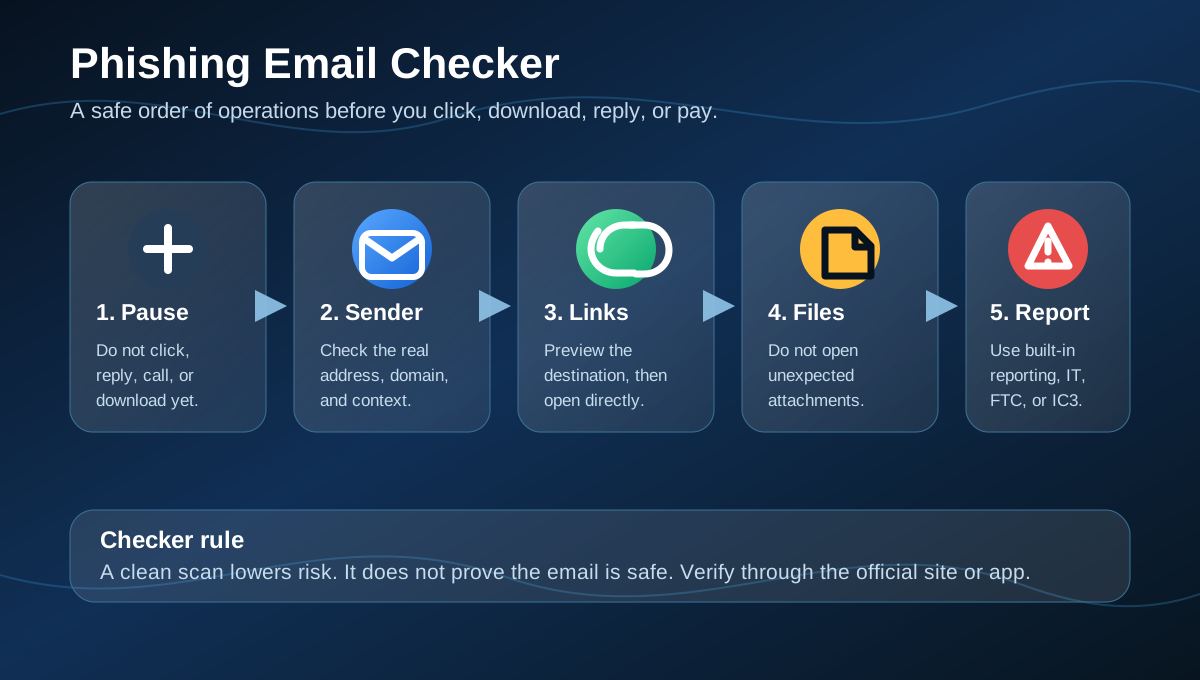
The safest checker is not one website where you paste the whole email. The safest checker is a sequence: pause, inspect the sender, preview links without clicking, treat unexpected attachments as unsafe, verify through the official site or app, then report the message through your email provider, IT team, the FTC or the FBI IC3 when money or account access is involved.
No phishing checker is perfect. A clean result can mean the scam is too new, the malicious site has not been indexed yet, or the dangerous part is in the social engineering rather than the link. Use checkers as signals, not permission to trust the email.
Why phishing email checkers matter now
Phishing remains one of the most common ways criminals start account takeovers, invoice fraud, malware infections, fake support scams and payment-app scams.
| Signal | What recent public data shows |
|---|---|
| APWG Q1 2026 | APWG reported 971,181 phishing attacks in Q1 2026, up 13.8% from Q4 2025. |
| Social media threats | APWG reported that impersonation and scam activity increased across social platforms in Q1 2026. |
| FBI IC3 2025 | The FBI reported 1,008,597 IC3 complaints and $20.877 billion in reported losses in 2025. |
| Phishing by count | In the FBI's 2025 IC3 report, phishing/spoofing was the top complaint category by count, with 191,561 complaints. |
| FTC 2024 | Consumers reported more than $12.5 billion in fraud losses to the FTC in 2024. |
The practical lesson is direct: inbox filters stop a lot, but users still need a reliable way to evaluate messages that look urgent, personal or work-related.
What a phishing email checker can actually check
A good checker looks at several layers. None of them is decisive alone.
Sender and domain
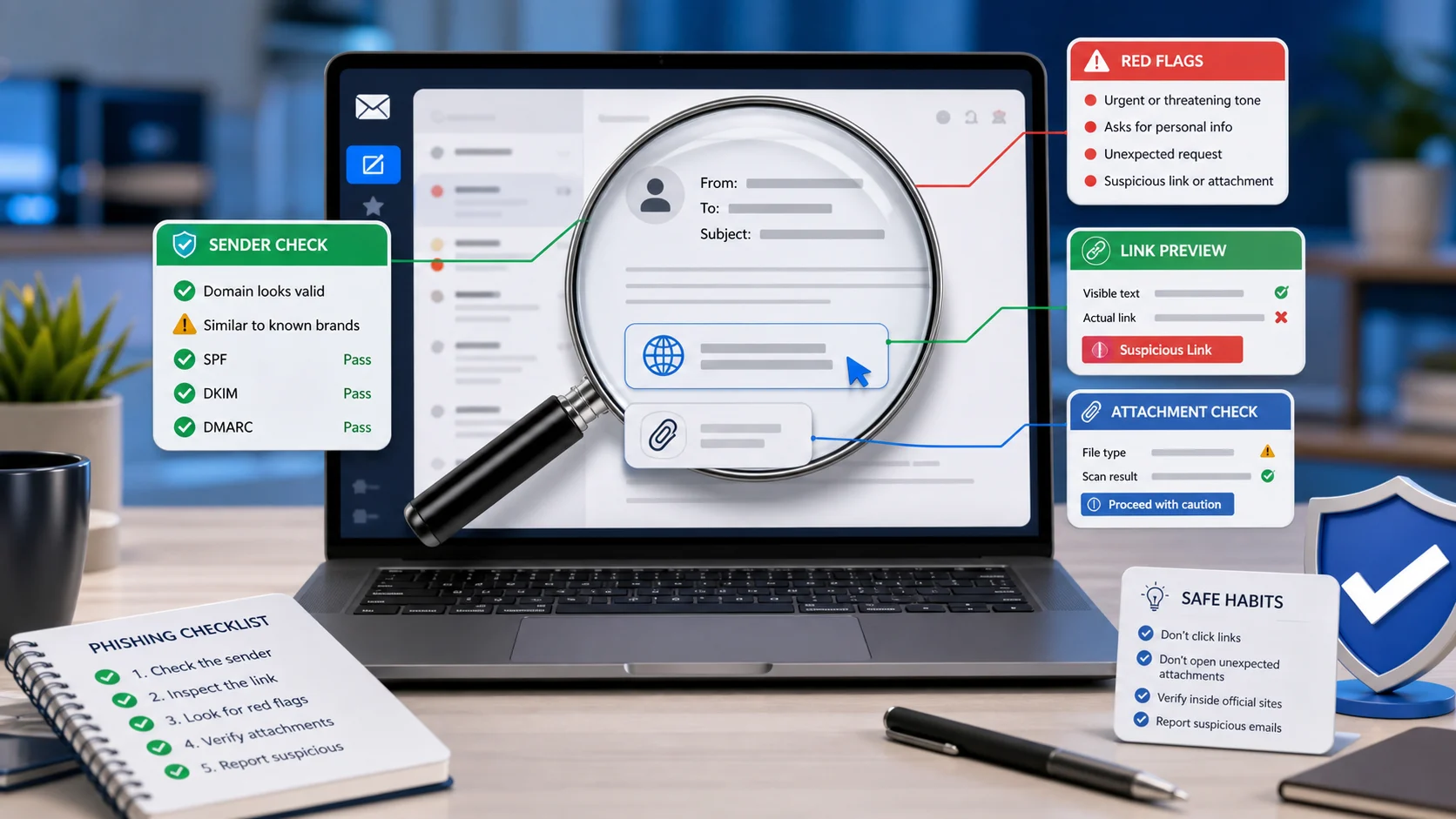
The sender display name can be fake. Check the actual email address and domain, not just the name shown in bold. Watch for lookalike domains, extra words, swapped letters and free-mail addresses pretending to be banks, delivery companies, payment platforms or executives.
Authentication signals such as SPF, DKIM and DMARC can help email systems judge whether a message passed technical sender checks. But users should not treat those signals as proof that the request is legitimate. A criminal can send from a compromised account or a newly registered domain that passes authentication.
Links
Links are a major phishing path. Preview the destination before opening it. On desktop, hover carefully without clicking. On mobile, long-press only if your device lets you preview safely without opening. If in doubt, do not use the link at all. Type the official address yourself or open the official app.
For public websites, Google Safe Browsing's Site Status tool and other URL scanners can help identify known dangerous pages. They are useful, but they may miss brand-new phishing sites.
Attachments
Unexpected attachments are high risk, especially files that ask you to enable macros, sign in to view content, install an app, run a script or open a password-protected archive. A file scanner may help, but do not upload confidential work documents or personal records to a public scanning service unless you are allowed to share them.
Tone and request
Some phishing emails have no malicious attachment and no obvious bad link. The scam is the request: approve a payment, change bank details, buy gift cards, share a code, reset a password, call a fake support number or move a conversation to another channel.
That is why a phishing email checker must include judgment about context. Was this email expected? Does the sender normally ask this way? Is the timing unusual? Can you verify through a known phone number, app or website?
The safest way to check a suspicious email
Use this order when an email feels suspicious:
- Stop before interacting with it.
- Do not click links, open attachments, scan QR codes, call phone numbers or reply.
- Check whether you expected the message.
- Inspect the real sender address and domain.
- Preview links without opening them.
- Verify account alerts by opening the official website or app yourself.
- For workplace email, use the official report-phishing button or forward to your security team.
- For personal email, report it through Gmail, Outlook, your provider, the FTC or IC3 where appropriate.
- Delete the message after reporting unless your bank, provider, employer or law enforcement asks you to preserve it.
This workflow is slower than clicking, but it prevents the two biggest mistakes: trusting the sender name and trusting the first link.
Which phishing checker should you use?
Use the checker that fits the risk.
| Situation | Better checker | Why |
|---|---|---|
| Gmail message looks suspicious | Gmail's Report phishing option | It gives Google the message context and helps train protections. |
| Outlook or Microsoft 365 message looks suspicious | Outlook's built-in Report button or your organization's reporting tool | Microsoft 365 organizations can route reported messages to security teams and Microsoft analysis. |
| Work email asks for payment, credentials or file access | Your company's phishing-report button or security team | Internal teams can inspect headers, logs, identity activity and attachments safely. |
| Link points to a public website | Google Safe Browsing Site Status or a reputable URL scanner | It can flag known dangerous domains without you visiting them. |
| Attachment may be malware | Your endpoint security tool or IT team | Public upload sites may share files with security vendors or customers. |
| Message claims to be from your bank, delivery company or payment app | The official app or typed website | Real account alerts should appear inside the account. |
Avoid random "free phishing email checker" sites that ask you to paste the full email, upload attachments, enter passwords or sign in with your mailbox. A checker that collects sensitive email content can create a privacy problem of its own.
Privacy warning: do not paste everything into a public tool
Many public scanners are useful for security research and suspicious URLs. They are not private inboxes. VirusTotal's documentation explains that standard submissions are part of a community analysis model and that submitted files or pages may be shared with security industry partners or premium customers.
That does not mean public scanners are bad. It means users should be careful:
- Do not upload confidential work documents without permission.
- Do not upload tax forms, IDs, contracts, medical records or customer data.
- Do not paste reset links, login links or one-time codes.
- Do not submit a full email thread containing private conversations.
- Do not use a scanner that asks for your email password.
If the email is work-related, report it internally instead of uploading it to a public site. If it is personal, check only the domain or URL when possible, and redact personal details before using any AI or third-party checker.
Red flags a checker may miss
Some scams pass basic link and malware checks because the message is designed to manipulate the person, not exploit the device.
Watch for these red flags:
- The email creates urgency: account closure, legal action, missed delivery, payroll issue or unpaid invoice.
- The sender asks for gift cards, crypto, wire transfer, payment-app transfer or "friends and family" payment.
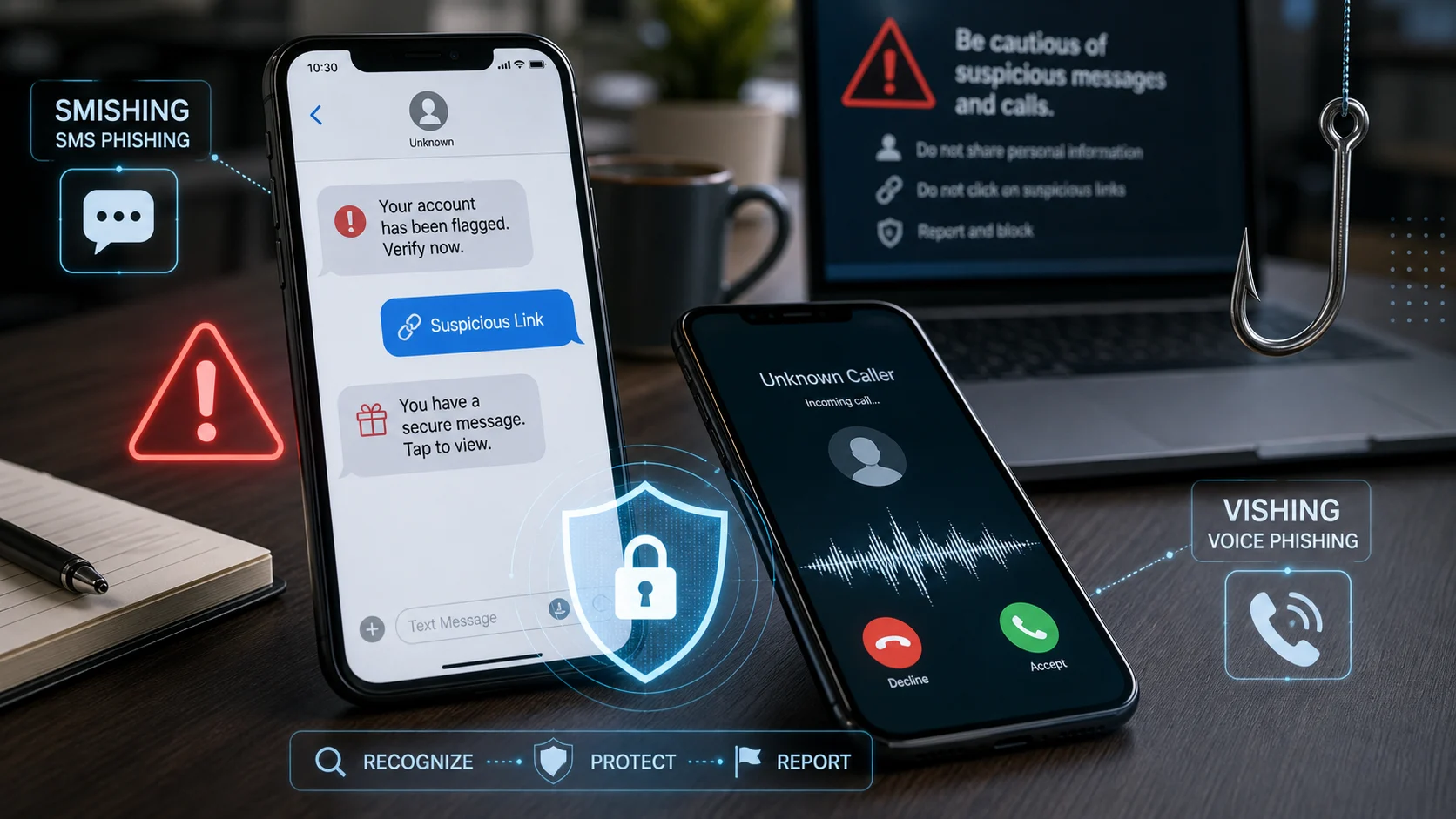
- The message says to call a phone number in the email to stop a charge.
- The sender asks for a one-time code, password, recovery phrase or MFA approval.
- The email includes a QR code instead of a normal link.
- The attachment is unexpected, password-protected or asks you to enable content.
- The email asks you to keep the request secret.
- The message comes from a known contact but sounds unlike them.
- The link text and actual destination do not match.
- The domain is close to a real brand but not exact.
If any one of these signs appears, verify through a separate channel.
How to check links without clicking
A safe link check starts with the domain.
Look for the real registered domain, not the whole string. For example, login.example.com.security-check.example.net belongs to example.net, not example.com. Also watch for hyphenated lookalikes, punycode, misspellings and extra words such as secure, verify, billing, support or login.
Then use the official route:
- For banking, open the bank app.
- For PayPal, open PayPal directly.
- For Microsoft 365, go to
office.comor your company portal. - For Google, go to
myaccount.google.com. - For delivery alerts, open the carrier's official app or type the tracking number into the official site.
If the email is legitimate, the alert should still exist after you open the service directly.
How to check attachments safely
The safest attachment rule is simple: if you were not expecting it, do not open it.
Be especially careful with:
- ZIP, RAR, 7z or password-protected archives.
- Office files asking you to enable macros or content.
- HTML files that open a fake login page.
- PDF files that contain login buttons, shortened links or phone numbers.
- Calendar invites from unknown senders.
- Files with double extensions such as
invoice.pdf.exe. - Cloud-document links that ask you to sign in again.
For work attachments, use your security team or endpoint tools. For personal attachments, ask the sender through a known channel whether they meant to send it. Do not reply to the suspicious email to ask.
Gmail and Outlook reporting
Gmail Help tells users how to report phishing from inside Gmail. That is usually better than forwarding screenshots because the platform can use message metadata.
Microsoft's consumer guidance says Outlook and Outlook.com users can select a suspicious message and use Report, then Report phishing. For Microsoft 365 organizations, Microsoft Learn documents user-reporting controls that let users submit suspicious messages from supported Outlook clients.
For workplace accounts, follow your organization's process. Many companies route reported mail into Microsoft Defender, Google Workspace, a security operations center or a managed security provider.
What to do if the checker says "safe"
Do not treat "safe" as final. A checker may only mean that the link or file is not currently known to be malicious.
Before trusting the email, ask:
- Did I expect this?
- Is the request normal for this sender?
- Does the official account show the same alert?
- Is the message asking for money, credentials or secrecy?
- Can I confirm by using a known phone number or app?
If the answer is still unclear, do not interact with the message. Report it or ask the organization through a known channel.
What to do if you clicked
If you clicked but did not enter information, close the page and do not download anything. Then open the service directly and check for account alerts.
If you entered a password, change it immediately from the official site and change it anywhere else you reused it. If you shared a one-time code, approved an MFA request, installed software or downloaded a file, treat it as urgent. Disconnect from sensitive accounts, run security checks and contact your IT team or the affected service.
If money was sent, call your bank or card issuer immediately. Report fraud to the FTC at ReportFraud.ftc.gov. If the incident involved cyber-enabled fraud, account takeover, business email compromise, cryptocurrency or significant financial loss, file a complaint at ic3.gov.
A simple checklist for families and teams
Use this rule set for everyday inbox safety:
- Do not click from urgent emails.
- Open apps and websites directly.
- Use a password manager; it will not autofill on most fake domains.
- Turn on MFA, preferably with passkeys or phishing-resistant methods where available.
- Keep browsers, phones and email apps updated.
- Report suspicious messages instead of just deleting them.
- Teach family members that banks, tech companies and government agencies do not need passwords or one-time codes by email.
- For businesses, test the reporting path before an incident.
Media: phishing awareness videos
These CISA Secure Our World videos are useful for reinforcing the checking workflow:
FAQ
Can I paste an email into an AI phishing checker?
Only after removing private details, reset links, one-time codes, customer data and attachments. AI can help spot red flags, but it can be wrong and it should not receive sensitive inbox content.
Is a URL scanner enough?
No. URL scanners are useful, but a new phishing site may not be flagged yet. The request itself may also be fraudulent even if the link is not currently classified as malicious.
Should I open the email header?
Advanced users and IT teams can inspect headers for sender authentication and routing clues. Most consumers should use built-in report-phishing tools instead of trying to interpret headers manually.
What if the email came from someone I know?
Known senders can be compromised. If the request is unusual, verify through a separate known channel such as a phone number you already have, not a number in the email.
Are QR codes safer than links?
No. QR codes can hide the destination until after you scan them. Treat unexpected QR codes in email the same way you treat suspicious links.
What is the best free phishing email checker?
For most users, the best free checker is the built-in reporting and warning system in Gmail, Outlook, your browser and your security software, combined with manual verification through the official app or website. For public URLs, Google Safe Browsing Site Status and reputable URL scanners can add another signal.
Sources
- CISA: Secure Our World - Recognize and Report Phishing
- CISA: Phishing Guidance: Stopping the Attack Cycle at Phase One
- FTC: How To Recognize and Avoid Phishing Scams
- FTC: ReportFraud.ftc.gov
- FBI: 2025 IC3 Annual Report
- APWG: Phishing Activity Trends Report, 1st Quarter 2026
- Google: Avoid and report phishing emails - Gmail Help
- Google Safe Browsing: Safe Browsing
- Google: Safe Browsing Transparency Report Help Center
- Microsoft Support: Protect yourself from phishing
- Microsoft Learn: Report phishing and suspicious emails in Outlook for admins
- VirusTotal Docs: How it works
- VirusTotal Docs: Private Scanning
Before you move on
Consumer scam response. Use this short checklist to turn the article into action.
- Do not reply with OTPs, login codes, or recovery phrases.
- Verify urgent requests through a separate trusted channel.
- Warn contacts quickly if your account may have been used.
This guide is written for practical user safety. For account, platform, or legal decisions, confirm critical steps with the official help center or your service provider.